

Deploying an autonomous AI agent requires a stable, always-on environment. A Virtual Private Server provides the exact compute resources needed to keep background processes running without interruption. Hermes Agent operates as a lightweight, Python-based automation framework. It handles complex workflows, API integrations, and continuous monitoring tasks. Setting it up on a Linux machine involves preparing the operating system, installing dependencies, and configuring a background service. This ensures the agent survives reboots and runs efficiently. The following instructions walk through the entire deployment process. The steps apply to any modern Debian or Ubuntu-based distribution.

Requirements
Before starting, verify the server specifications. Hermes Agent runs efficiently on minimal resources, but having a bit of extra headroom prevents memory bottlenecks during heavy API calls.
| Component | Minimum Requirement | Recommended |
|---|---|---|
| OS | Ubuntu 22.04 LTS | Ubuntu 24.04 LTS |
| CPU | 1 vCPU | 2 vCPU |
| RAM | 1 GB | 2 GB |
| Storage | 10 GB SSD | 20 GB SSD |
| Network | 100 Mbps | 1 Gbps |
You also need root access or a user with sudo privileges. An active SSH client is required to connect to the machine.
Setting Up Hermes Agent on a VPS: A Step-by-Step Guide
The installation process is straightforward but requires careful attention to detail. You will update the operating system, install prerequisites, run the official installation script, and configure the environment path. Following each command exactly ensures the agent runs efficiently. The system will prompt for your password when executing administrative tasks. Take your time with the configuration steps to avoid syntax errors. This structured approach guarantees a stable deployment for your automation workflows.
Before executing any system commands, a secure connection to the server must be established. You will use the Secure Shell protocol to access the command line interface remotely. Open your preferred terminal application on your local computer. Windows users can use PowerShell or Command Prompt. Mac and Linux users should open the default Terminal.
This command initiates a secure shell connection to the virtual private server using the root administrative account.
Replace the placeholder with the actual IPv4 address found in the hosting control panel. The system will immediately prompt for authentication. Type the root password and press Enter. The terminal will not display any characters while typing the password. This is a standard security feature. Press Enter again if the system asks to accept the host fingerprint.
1. Update the System
To ensure the server has the latest security patches, refresh the local package lists first.
This command queries the software repositories and updates the local index of available packages.
This installs the newest versions of all currently installed packages without prompting for confirmation.
2. Install Prerequisites
Install essential tools required to download and execute the official installation script securely.
This installs the curl utility for secure data transfer and the bash shell interpreter.
3. Execute the Official Installation Script
Download and run the verified one-line installer provided directly by Nous Research.
This command securely fetches the official installation script and pipes it directly to bash for immediate execution, handling all dependencies automatically.
The script will automatically install Python, Node.js, and other required dependencies. Wait for the process to complete.
4. Persist the Binary Path
To avoid manually entering the export command every time you connect to the server, append the path rule to the shell configuration file.
This command appends the PATH update rule to the end of the ~/.bashrc file, making it permanent for all future sessions.
Note: If you are using the zsh shell instead of bash (which is rare for root but possible), replace ~/.bashrc with ~/.zshrc in this step.
5. Reload the Shell Environment
Apply the new environment variables added by the installer to your current session.
This command reloads the shell configuration, applying the new PATH rule without requiring you to disconnect and reconnect to the server.
6. Start and Verify the Gateway
This command installs the Hermes Gateway as a systemd service, allowing it to run in the background and start automatically when the server boots.
Now that the system recognizes the command, you can safely start the service as recommended by the installer.
This command initiates the launch of the Hermes Agent background gateway, which handles connections and task processing.
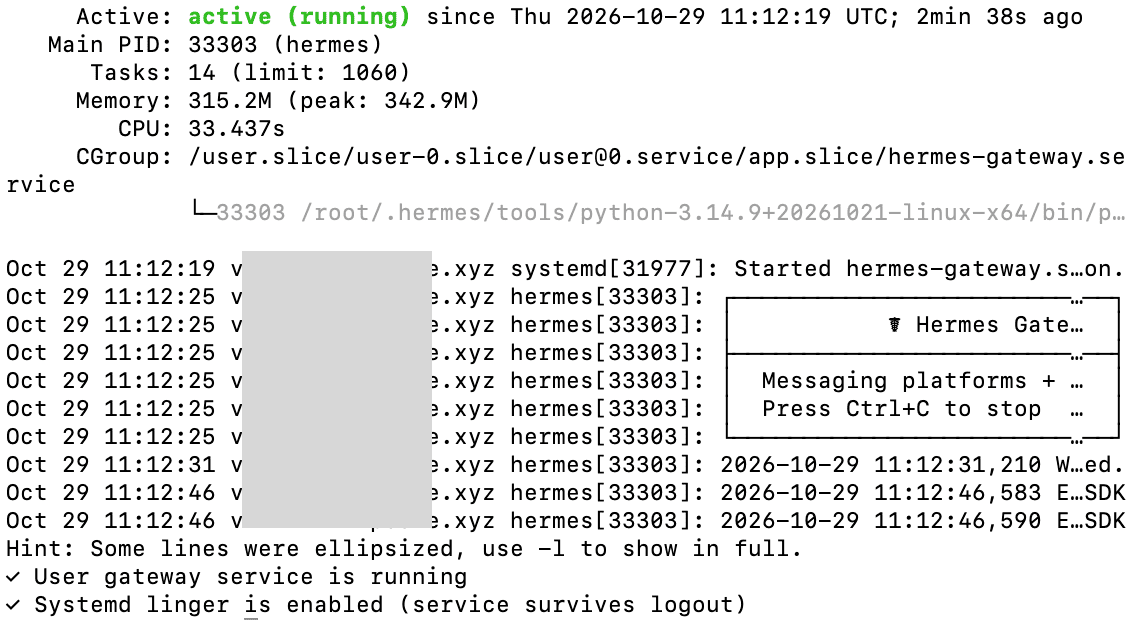
Check the status to ensure everything is working correctly.
This command displays the current operational state of the service, confirming active operation or outputting errors if any issues have occurred.
Frequently Asked Questions: Installing Hermes Agent on a VPS
-
Can I run Hermes Agent on a 1GB RAM VPS?
Yes, the agent is highly optimized for low-resource environments. A 1GB RAM machine is sufficient for basic automation tasks and lightweight API interactions. However, if you plan to process large datasets or run concurrent background jobs, memory usage will spike. In those cases, adding a swap file helps prevent out-of-memory crashes. For heavy machine learning workloads or complex data parsing, upgrading to a 2GB or 4GB plan is strongly recommended to maintain system stability.
-
Why use a virtual environment for this installation?
A virtual environment isolates the agent's Python dependencies from the core operating system. This prevents package conflicts that could break other system tools relying on Python. It also makes updating or removing the agent much cleaner. You simply delete the virtual environment folder without touching global system libraries. This isolation is a standard best practice for any Python-based application deployed on a production server. It keeps the host operating system clean and secure.
-
Where can I buy a VPS for Hermes Agent?
You can buy a VPS from VPS.one – even the most basic plan meets the system requirements and is perfect for Hermes Agent. The “VPS 1” plan includes 15 GB of SSD storage, 1 CPU, and 1 GB of RAM. You can pay for it using your preferred method: credit card, WebMoney, or cryptocurrency.
-
How do I update the agent to the newest version?
To update Hermes Agent, run the built-in update command:
This command updates the agent and its dependencies using the built-in update process. Follow any prompts displayed in the terminal to complete the update.
-
What happens if the VPS reboots unexpectedly?
The agent will automatically restart because of the systemd service configuration created in the final step. Systemd monitors the process and ensures it launches on every system boot. If the application crashes due to a minor error, systemd will also attempt to restart it based on the restart policy. You do not need to manually log in via SSH to turn it back on. This self-healing behavior is exactly why using a background service is better than running the script in a standard terminal window.
-
Is it safe to run the agent as the root user?
For better security, it is recommended to create a dedicated, unprivileged Linux user for running Hermes Agent instead of using the root account.
-
How can I view the real-time logs for the agent?
You can monitor the live output using the journalctl command provided by systemd. This tool captures all standard output and error messages generated by the agent. By tailing the log file, you can watch the automation tasks execute in real time. This is extremely useful for debugging failed API calls or tracking workflow progress. You can also filter the logs by date or search for specific error keywords to quickly identify and resolve operational issues.
-
Does the agent require a specific database to function?
By default, the agent uses a lightweight local SQLite database to store its state, memory, and task history. This requires zero additional configuration and keeps the setup simple. However, if you are running multiple instances or need high-concurrency data access, you can configure it to use PostgreSQL or MySQL. Changing the database backend simply involves updating the configuration file with your new connection strings. The local SQLite option is perfectly fine for standard single-server deployments.
-
How do I completely uninstall the agent from my server?
Complete removal involves stopping the service, deleting the files, and removing the system configurations. First, stop and disable the systemd service to halt all background processes. Next, delete the service file from the system directory and reload the daemon. Then, remove the dedicated user and its home directory. Finally, delete the main application folder. This sequence ensures no leftover background tasks, configuration files, or user accounts remain active on your virtual private server.